
New application – Loan details.
The first step is to complete the loan details section.
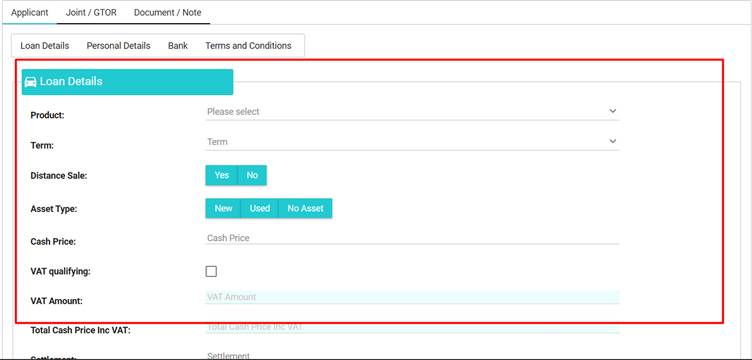
- Select the product from the drop-down list provided.
- Enter the term. This can either be typed manually or selected by using the drop-down provided.
- Indicate if the application should be treated as a distance sale.
- Select the asset type – If you select no asset, this will use our Qlassify service, which limits some lenders.
- Depending on your selection, two different options will appear (A or B)
A) New – several drop-down menus will appear for you to inform AU Finance of the asset.
B) Used – A second question will appear, either select by VRN or by Derivative.
When selecting by derivative, the same fields will appear as option A above; when selecting by VRN, simply enter the VRN and press the search button.
- Enter the current mileage. (If applicable, the mileage is checked against the MOT records; if the mileage entered is less than the recorded MOT, then an error will appear)
- Annual mileage –(This option will appear for Hire Purchase, although it’s not traditionally required for this product, some of our funders ask for this. If no amount is entered, this will default to 8,000 miles per annum.)
- Enter the full breakdown of figures.
- Extras and Accessories will be calculated from the products entered in the Asset Add-Ons and Accessories and Ancillary Products Tables. – See below for further information.
Settlement information
When you enter settlement information, a drop-down will appear.
If known, please provide AU Finance with details of the customer’s previous agreement, as this can assist in the approval of a customer and indicate if a contra-settlement is required.

Asset Add-Ons and Accessories
In this section of the proposal form, you will need to enter the asset add-ons.
To do this, click on “+ Add” button”, enter the description, amount and tick if the product is VAT qualifying.
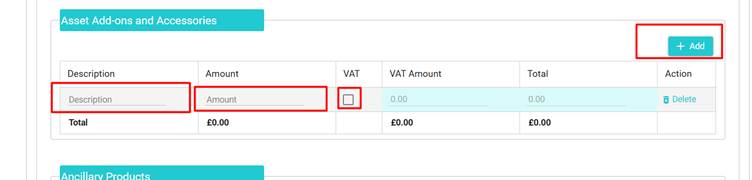
Note: You can add multiple add-ons if required.
Asset Add-ons
In this section, the following products should be entered:
Fuel (Can also show as Petrol or Diesel)
Road Fund Licence (Can also show as RFL or Road Tax)
Paint Protection
Fabric Protection
Admin Fee
Delivery Fee
For any other products, please see the Ancillary products section.
Resource: To help with remembering which products go in which table within the system, we’ve put together a handy document that can be printed or saved to your local device. Extras
Ancillary Products
Here you will need to add any ancillary products,
To do this, simply click “+ Add”, In the product column, select the option from the drop-down.
In Description, please enter the product details and any policy numbers if applicable.
Enter the amount and tick if VAT is applicable.
Note, some funders will not finance Ancillary products without a deposit. In the event that this happens, the customer can either choose to finance the products with an increase in deposit or remove the products from the application.
Ancillary Products
In this section, the following products should be entered:
Warranty
Service Plan
Breakdown Cover
Tyre Insurance
Alloy Insurance