
New Quote
There are two ways to generate a new quote.
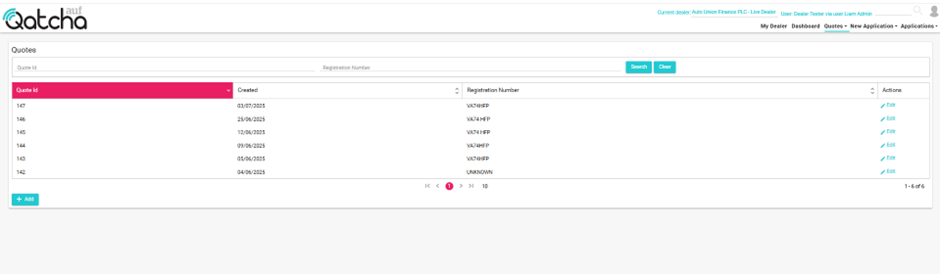
1) When clicking on “Quotes” you are taken to your last 30 days of saved quotations.
Simply Click “+Add”
2) On the Quotes menu, from the drop down select New Quote

Generating a quote is easy, each required field is indicated by a red star.
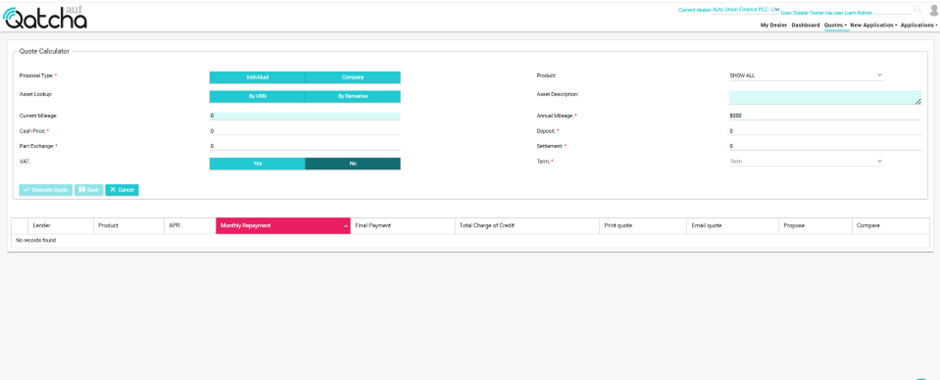
When adding the asset you can either choose to do this By VRN or By Derivative.
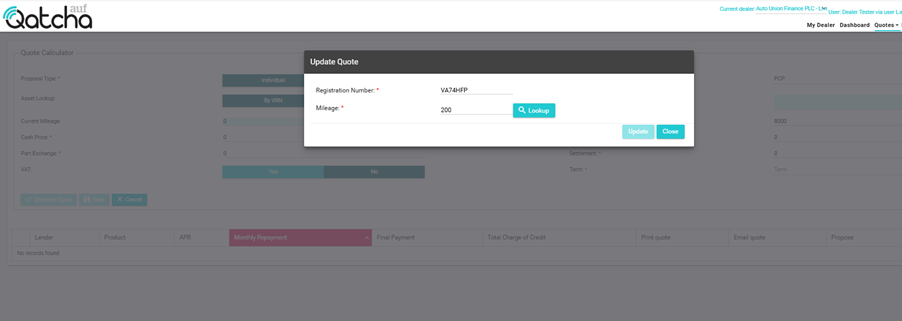
When searching by VRN, simply enter the registration, mileage and select search
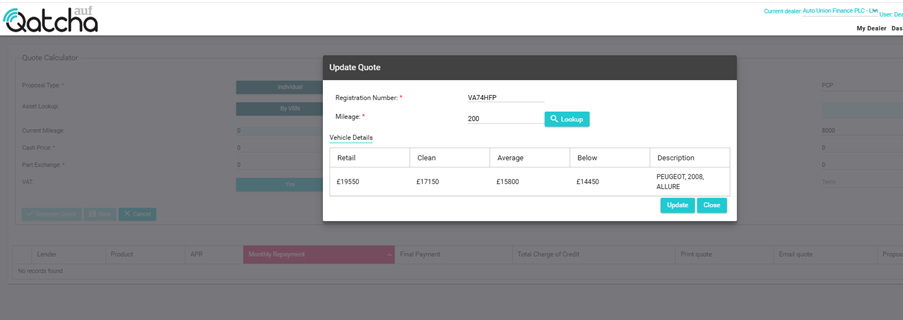
The latest valuations and description should appear.
Tip: If an asset is in the process of a plate transfer, sometimes the lookup can fail. If no valuations are returned it is recommended to use the By Derivative option instead.
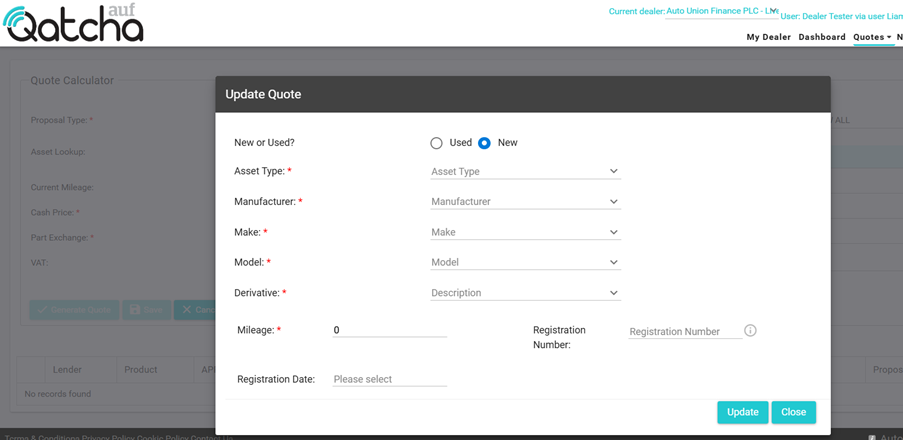
When adding an asset by Derivative, all mandatory fields will be indicated by a red star, complete the required fields and click on update.
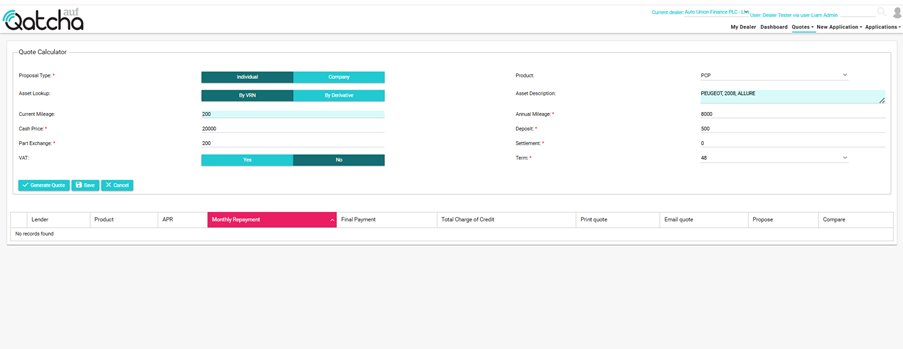
Once you have completed all fields, click Generate Quote
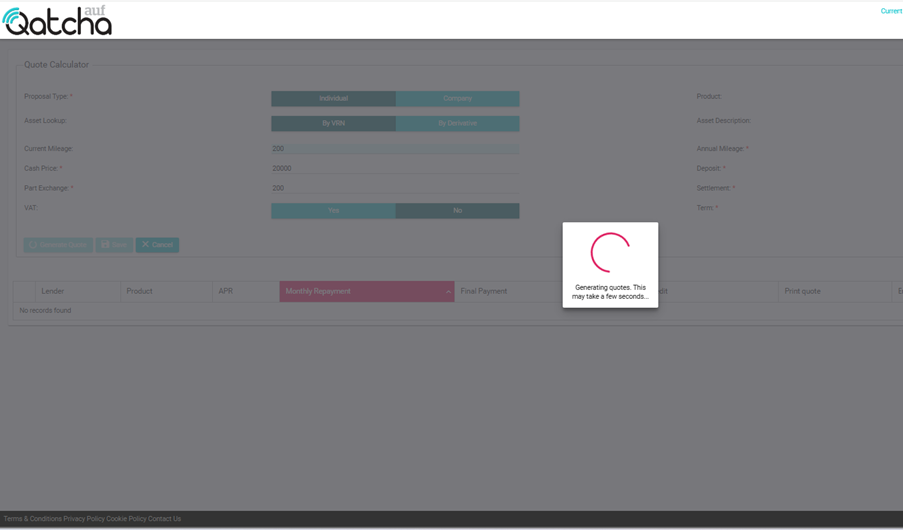
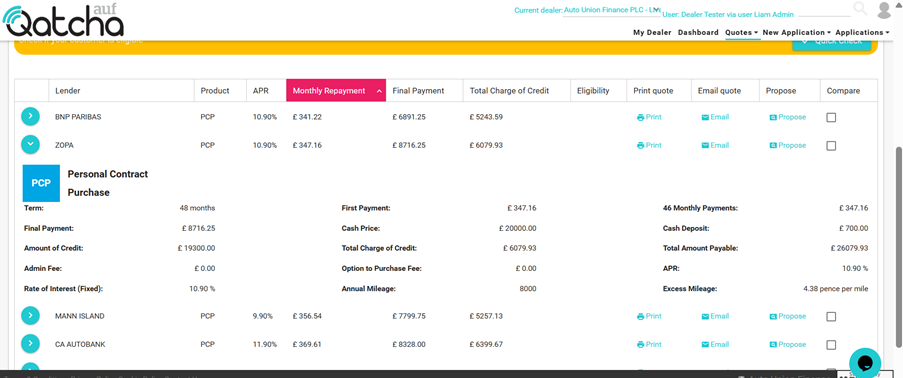
The system will then return quotes for all applicable lenders, if you have selected show all in the products then multiple products will be returned.
Quotes will be returned in the table and are sorted with the lowest monthly payment on the top.
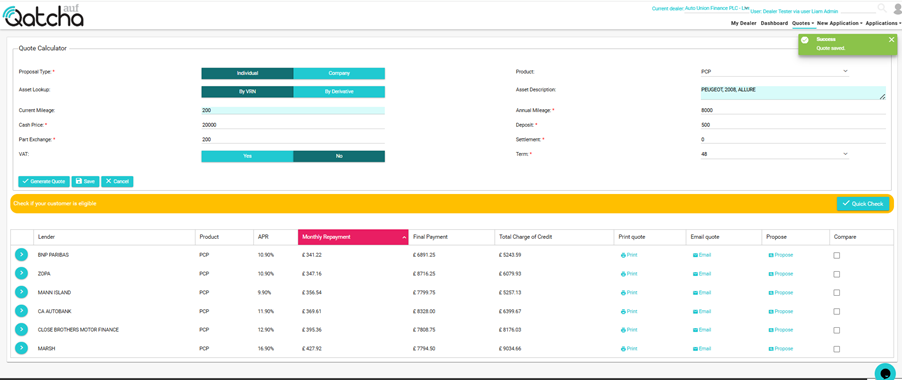
Each quote can be extended to view a full breakdown by click on the drop down.
See related topics:
Comparing Quotes
Print Quotes
Email Quote
Quick Check
Propose Quote