
How Can We Help?
Task Type – Invoice – E-Invoice
E-Invoice is the easiest way to provide AU Finance with an invoice.
To begin, locate the invoice task, either in the activity panel or the task tab.
Once you are editing the invoice task, the Online Invoice link should appear.
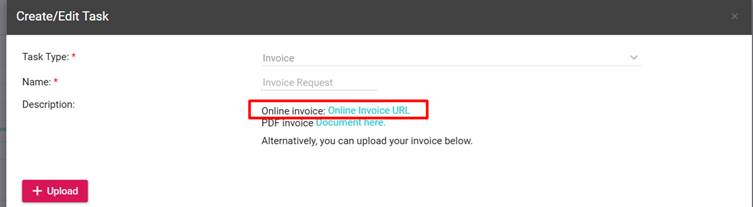
Click the link to begin the process.
There are a few options that will need your input.
- Verify the mileage of the asset – This can be changed here
- Select the date, simply click in the box for the calendar to appear
- Invoice number – This is optional; you can use the generated number or enter your own to match.
- Check the figures, Cash deposit, part exchange, and settlement can be changed here.
- Confirm that the information provided is correct.
- Inform us if this application is a contra settlement.
Once you have entered this information, simply click save.

A message will appear on your screen to inform you that the invoice was successfully completed.
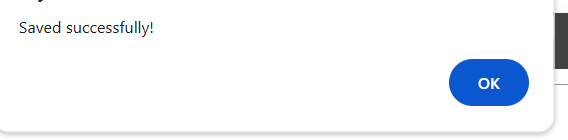
Simply click “Complete” on the task.

Note: E- Invoices can be downloaded once completed; these will appear in the Documents and Task tab or on the invoice popup before clicking “Complete”