
Requesting Documents
Once you have received an acceptance for a customer, you can request documents via the lenders tab in the applicable application.
Firstly, view the application and head to the Lenders tab.
Tips:
How to use Quick Search
How to use simple search
How to use advance search.
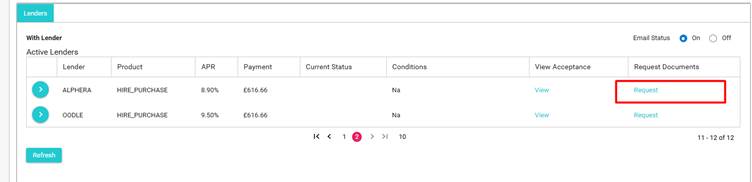
In this example, I wish to request documents on the Alphera acceptance. In the request documents column, simply click the request button.
A pop-up will appear, ensure that the information shown is correct and matches the customer, it’s important that the right documents are requested in order to prevent delays at the Payout Stage.
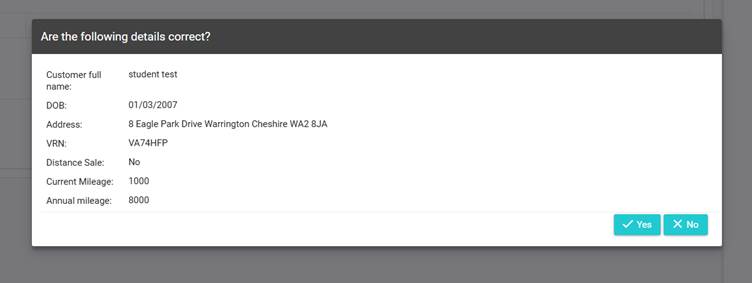
If the information is correct, simply click “Yes”
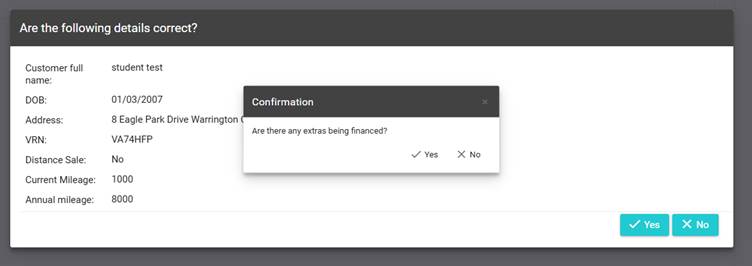
You will then be asked a further question regarding extras.
The status of the application will now change to one of the following statuses:
Documents Requested
Documents Available.
Some lenders API’s return documents to our system upon acceptance, and where we have these already, we automatically give you these documents when documents have been accepted. (This means that we can provide finance documents 24/7 on auto-accept).
Where a lender doesn’t return documents to us, our team will process the request and change the status to documents available.
When an application hits Documents available, the customer will receive an SMS message informing them of new tasks to complete, There will now also be an invoice task available for you to complete.
For more information regarding task, please see the following articles:
Invoice Task type
Note Task type
Information Task Type
Document / Note Task Type
Document